Introduction
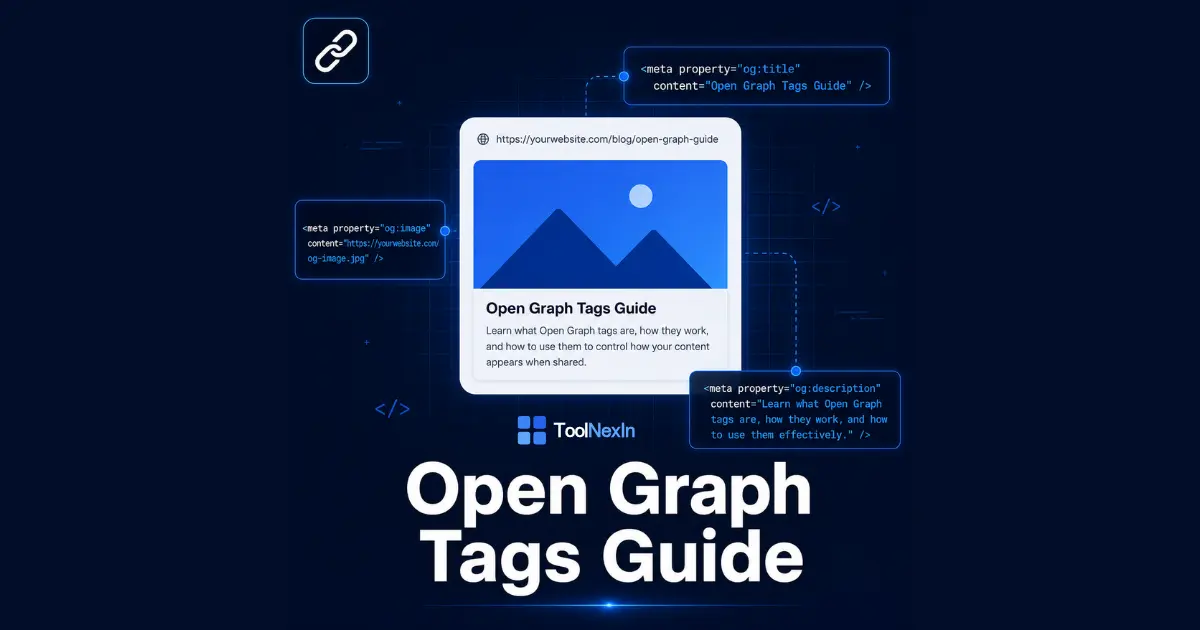
Have you ever noticed that when you share a link on WhatsApp, LinkedIn, or Slack, it doesn't just show a plain URL — it shows a title, a description, and a thumbnail image? That rich card isn't magic. It's the result of something called Open Graph tags quietly sitting in the HTML of that webpage.
If you've ever shared a link and seen a blank preview, a wrong image, or a title that made no sense — that's a broken or missing Open Graph setup. And if you've ever wondered how to check what your own page looks like when shared, that's exactly what tools like the Link Preview Extractor at ToolNexin are built for.
This guide covers everything — what Open Graph tags are, how each one works, how platforms use them, how to test them, and how to fix common problems. By the end, you'll have full control over how every page on your site appears when someone shares it.

What Are Open Graph Tags?
Open Graph (OG) is a protocol originally created by Facebook in 2010. Its purpose was simple: give web pages a standard way to describe themselves to social platforms and messaging apps.
Before Open Graph, platforms had to guess what a page was about — scraping the title, picking a random image, and hoping the description made sense. The results were inconsistent and often embarrassing.
Open Graph fixed that by letting website owners declare, explicitly in HTML, exactly what title, description, image, and type should represent the page when it's shared anywhere.
Today, Open Graph is supported by virtually every major platform — Facebook, LinkedIn, WhatsApp, Telegram, Slack, Discord, Twitter/X, iMessage, and many more.
The tags live inside the <head> section of an HTML page and look like this:
<head>
<meta property="og:title" content="Open Graph Tags: The Complete Guide" />
<meta property="og:description" content="Learn how to control your link previews on every platform." />
<meta property="og:image" content="https://yoursite.com/og-image.jpg" />
<meta property="og:url" content="https://yoursite.com/open-graph-guide" />
<meta property="og:type" content="article" />
</head>
That's it. Five lines of HTML that completely transform how your link appears when shared.

The Core Open Graph Tags (The Essential Five)
1. og:title
<meta property="og:title" content="Your Page Title Here" />
This is the headline of your link preview card. It should be clear, specific, and compelling — ideally under 60 characters so it doesn't get truncated on most platforms.
Do not just copy your <title> tag here blindly. The HTML title often includes your brand name appended (e.g., "Guide to OG Tags | YourBrand"), which wastes space in a preview card. Your og:title should be the standalone headline for the content.
2. og:description
<meta property="og:description" content="A concise summary of your page content." />
The supporting text shown below the title. Aim for 120–160 characters — enough to provide context without getting cut off. Think of it like a tweet: punchy, informative, and relevant.
3. og:image
<meta property="og:image" content="https://yoursite.com/images/og-cover.jpg" />
The single most important tag for click-through rates. A compelling image can double or triple engagement on shared links. Key requirements:
- Use an absolute URL (not a relative path like
/images/cover.jpg) - Recommended size: 1200 × 630 pixels (this is the universal safe zone for all platforms)
- Format: JPG or PNG (WebP has limited support on older clients)
- File size: keep under 1MB for fast loading


4. og:url
<meta property="og:url" content="https://yoursite.com/canonical-page-url" />
The canonical URL of the page. This tells platforms which URL to associate the preview with — important if your page is accessible via multiple URLs (with/without trailing slash, http vs https, www vs non-www). Always set this to the clean, canonical version.
5. og:type
<meta property="og:type" content="website" />
Describes what kind of content the page represents. Common values:
| Type | Use Case |
|---|---|
website |
Default — homepages, landing pages, tools |
article |
Blog posts, news articles, guides |
product |
E-commerce product pages |
video.movie |
Video content pages |
profile |
User or author profile pages |
For most blog posts like this one, use article. For tool pages like the Link Preview Extractor, website is appropriate.
Extended Open Graph Tags (Go Beyond the Basics)
Once you have the core five covered, these additional tags give you finer control.
og:site_name
<meta property="og:site_name" content="ToolNexin" />
The name of your overall website, distinct from the page title. Platforms like LinkedIn and Facebook show this as a small label above or below the preview card, establishing brand context.
og:locale
<meta property="og:locale" content="en_US" />
Declares the language and region of your content. Useful for multilingual sites. Defaults to en_US if omitted.
og:image:width and og:image:height
<meta property="og:image:width" content="1200" />
<meta property="og:image:height" content="630" />
Explicitly tells crawlers the image dimensions, which allows them to render the preview faster without downloading the full image first. Always include these alongside your og:image.
og:image:alt
<meta property="og:image:alt" content="A diagram showing how Open Graph tags work" />
An accessibility tag for the preview image. Screen readers and accessible platforms use this. Good practice and increasingly expected.
og:video
<meta property="og:video" content="https://yoursite.com/video.mp4" />
For pages with a primary video. Platforms that support it will embed a playable video in the preview card rather than a static image.
Twitter Card Tags: Open Graph's Cousin
Twitter (now X) developed its own metadata system called Twitter Cards, which works alongside Open Graph. When Twitter crawls a page, it checks for Twitter Card tags first, then falls back to OG tags if they're absent.
The Essential Twitter Card Tags
<meta name="twitter:card" content="summary_large_image" />
<meta name="twitter:title" content="Your Page Title" />
<meta name="twitter:description" content="Your page description." />
<meta name="twitter:image" content="https://yoursite.com/og-image.jpg" />
<meta name="twitter:site" content="@YourTwitterHandle" />
The twitter:card type determines the layout:
| Type | Description |
|---|---|
summary |
Small square thumbnail on the left |
summary_large_image |
Full-width large image (most common) |
app |
For mobile app download cards |
player |
For embedded video/audio players |
For almost all content pages, summary_large_image is the right choice — it displays a large hero image above the title and description, significantly outperforming the small summary card in engagement.
Pro tip: Since Twitter falls back to OG tags anyway, you only strictly need twitter:card to set the card type, and the rest will inherit from your OG tags. But explicitly setting all Twitter tags gives you tighter control.
How Platforms Read and Prioritize Tags
Not every platform reads tags the same way. Here's the priority order major platforms use:
Facebook & LinkedIn: OG tags → Standard HTML <title> and <meta description> → Page content inference
Twitter/X: Twitter Card tags → OG tags → Standard HTML tags
WhatsApp & Telegram: OG tags → Standard HTML tags
Slack & Discord: OG tags → Twitter Card tags → Standard HTML tags
iMessage / iOS: OG tags → Standard HTML tags
This is why setting both OG tags and Twitter Card tags together gives you the best coverage across all platforms.
How to Test Your Open Graph Tags
Writing the tags is step one. Verifying they actually work is step two — and it's where most developers skip ahead too fast, only to find their preview looks broken after publishing.
The Fastest Way: ToolNexin Link Preview Extractor
The quickest way to see exactly what your page's link preview looks like is to paste your URL into the Link Preview Extractor on ToolNexin. It fetches your page, reads the OG and Twitter Card tags, and shows you the extracted title, description, image, favicon, and URL — exactly as social platforms see them.
This is especially useful when:
- You've just published a new page and want to verify the preview before sharing
- A user reports a broken or unexpected preview on a specific platform
- You're auditing your site's metadata across multiple pages
- You want to compare your page's OG data against a competitor's
Platform-Specific Debuggers
Each major platform also offers its own preview testing tool:
- Facebook Sharing Debugger —
developers.facebook.com/tools/debug/ - LinkedIn Post Inspector —
linkedin.com/post-inspector/ - Twitter Card Validator —
cards-dev.twitter.com/validator
These are helpful for platform-specific rendering, but they require logging in and don't show raw tag data as cleanly. For a quick raw extraction, the Link Preview Extractor is the faster choice.
Common Open Graph Problems and How to Fix Them
Problem 1: Image Not Showing in Preview
Causes and fixes:
- Image URL is relative (
/images/og.jpg) → change to absolute (https://yoursite.com/images/og.jpg) - Image is too small (under 200×200px) → Facebook and LinkedIn require a minimum size
- Image URL returns a redirect → use the final direct URL
- Image is blocked by
robots.txt→ ensure crawlers can access your image directory - Image is served over HTTP on an HTTPS page → ensure image URL uses HTTPS
Problem 2: Wrong Title or Description Showing
Platforms cache OG data aggressively. If you updated your tags but the old data still appears:
- Use Facebook's Sharing Debugger → click "Scrape Again" to force a refresh
- For LinkedIn, use the Post Inspector to clear the cache
- Wait 24–48 hours for WhatsApp and Telegram — they have no manual cache clear
Problem 3: Preview Shows Site Title Instead of Page Title
You likely don't have og:title set. The platform fell back to the <title> tag, which may include your site name. Add an explicit og:title with just the page-specific headline.
Problem 4: No Preview at All
This usually means the page returned an error, is behind a login wall, or is blocked in robots.txt. Platforms cannot fetch pages requiring authentication — any content behind a login will never generate a preview.
Problem 5: Wrong Image Dimensions / Cropping Oddly
Different platforms crop differently:
- Facebook: 1.91:1 ratio (1200×630 is safe)
- LinkedIn: 1.91:1 ratio (1200×627 recommended)
- Twitter: 2:1 ratio for large image cards (1200×600 is safe)
- WhatsApp: square crop for thumbnails (keep important content centered)
Using 1200×630 keeps your image safe across all platforms with important content centered.
Open Graph for Different Page Types on Your Site
Blog Posts and Articles
<meta property="og:type" content="article" />
<meta property="og:title" content="Open Graph Tags: The Complete Guide" />
<meta property="og:description" content="Control how your links look on every platform." />
<meta property="og:image" content="https://yoursite.com/blog/og-guide-cover.jpg" />
<meta property="article:published_time" content="2025-05-30T10:00:00Z" />
<meta property="article:author" content="https://yoursite.com/author/yourname" />
The article:published_time and article:author tags are article-specific extensions that Facebook and some aggregators use to display publication dates and author attribution.
Tool Pages
For utility tools like the Link Preview Extractor, UTM Builder, JSON Formatter, or QR Code Generator, your OG tags should focus on what the tool does and who it's for:
<meta property="og:type" content="website" />
<meta property="og:title" content="Link Preview Extractor — See How Any URL Looks When Shared" />
<meta property="og:description" content="Paste any URL and instantly see the title,
description, image, and metadata platforms extract for link previews." />
<meta property="og:image" content="https://toolnexin.com/images/og-link-preview-extractor.jpg" />
The title should answer "what does this tool do?" in one line. The description should tell a potential user exactly what they'll get from using it.
Homepage
<meta property="og:type" content="website" />
<meta property="og:title" content="ToolNexin — Free Online Tools for Developers & Creators" />
<meta property="og:description" content="40+ free tools: JSON formatter, UTM builder,
link preview extractor, QR generator, hash tools, and more." />
<meta property="og:image" content="https://toolnexin.com/images/og-homepage.jpg" />
<meta property="og:url" content="https://toolnexin.com/" />
Open Graph and SEO: What's the Relationship?
A common question: do OG tags directly improve your Google rankings?
The direct answer is no — Google does not use Open Graph tags as a ranking signal. Google has its own structured data system (Schema.org / JSON-LD) and reads standard HTML title and meta description tags for search results.
However, OG tags have an indirect SEO impact that's significant:
- Better link previews on social media → higher click-through rates → more traffic
- More traffic from social shares → signals to Google that the content is valuable
- Properly set
og:urlprevents duplicate content issues from inconsistent URLs being shared - Rich previews on messaging apps increase organic reach, which drives backlinks
Think of OG tags as the bridge between your SEO work and your social distribution. The content ranks in Google because of SEO; it spreads virally because of OG tags.
A Complete Open Graph Template
Here's a production-ready template you can drop into any page:
<!-- Primary Open Graph Tags -->
<meta property="og:title" content="Your Page Title" />
<meta property="og:description" content="A clear, concise description under 160 characters." />
<meta property="og:image" content="https://yoursite.com/images/og-image.jpg" />
<meta property="og:image:width" content="1200" />
<meta property="og:image:height" content="630" />
<meta property="og:image:alt" content="Descriptive alt text for the image" />
<meta property="og:url" content="https://yoursite.com/page-url" />
<meta property="og:type" content="website" />
<meta property="og:site_name" content="Your Site Name" />
<meta property="og:locale" content="en_US" />

<!-- Twitter Card Tags -->
<meta name="twitter:card" content="summary_large_image" />
<meta name="twitter:title" content="Your Page Title" />
<meta name="twitter:description" content="A clear, concise description under 160 characters." />
<meta name="twitter:image" content="https://yoursite.com/images/og-image.jpg" />
<meta name="twitter:site" content="@YourHandle" />
Copy this, fill in your values, validate with the Link Preview Extractor, and you're done.
Related Tools That Work Well Alongside OG Tags
If you're optimizing your pages and their shareability, several other tools in the ToolNexin ecosystem directly support that workflow:
URL Encoder / Decoder — Useful when your og:image or og:url contains special characters that need to be properly encoded.
UTM Builder — When you share links with UTM parameters on social media, pair it with proper OG tags so the preview still looks clean regardless of what's appended to the URL.
Readability Score Checker — Your og:description should be easy to read at a glance. Use this to verify your descriptions are readable before publishing.
Word Counter — Quickly check that your og:title is under 60 characters and og:description is under 160 characters.
Image to Base64 — Sometimes useful when testing or embedding images in development before hosting them at a proper URL.
Domain Age Checker — When auditing a competitor's link previews, check how long their domain has been established alongside their OG metadata.
QR Code Generator — Generate QR codes for your pages after optimizing their OG tags, so offline-to-online sharing also leads to a polished preview experience.
Conclusion
Open Graph tags are one of the highest-leverage, lowest-effort optimizations you can make to any webpage. A few lines of HTML in the <head> section give you complete control over how your content appears every time someone shares it — on social media, in messaging apps, in Slack channels, and across the web.
The formula is simple: set the core five tags correctly, add Twitter Card tags for full platform coverage, use a 1200×630 image, keep titles under 60 characters and descriptions under 160, and always test with the Link Preview Extractor before publishing.
Done right, Open Graph turns every share of your content into a polished, branded, compelling preview that earns clicks rather than getting scrolled past.
Ready to test your own pages? Paste any URL into the ToolNexin Link Preview Extractor and see exactly what platforms extract — title, description, image, favicon, and all metadata — in seconds.