Introduction
Think about the last time you were stuck trying to find a quiet coffee shop where you could actually get some work done on a Sunday afternoon. You typed "coffee shops near me" into Google Maps, got a wall of pins, and then spent ten more minutes reading reviews to figure out which one was right. That process is now officially outdated.
The Google Maps Gemini integration has fundamentally changed how the world's most-used navigation app works. Instead of keyword searches and filter menus, you now have a conversational AI co-pilot that understands context, reads between the lines of your request, and delivers results that actually match what you are looking for.
Google officially announced the first phase of this integration in November 2025, followed by the landmark Ask Maps and Immersive Navigation rollout in March 2026. Since then, it has been rolling out steadily across the US and India on both Android and iOS.
In this guide, you will get a clear breakdown of every Gemini-powered feature inside Google Maps, how to use each one, what it means for everyday navigation, and what developers can build on top of it.
What Is Google Maps Gemini Integration?
At its core, the Google Maps Gemini integration is Google's effort to embed its most capable generative AI model directly into the Maps ecosystem. Rather than treating Maps as a static database of pins and routes, Gemini turns it into a dynamic, conversational experience.
Gemini brings two major capabilities to Maps. First, it handles natural language understanding, so you can ask genuinely complex questions instead of rigid keyword searches. Second, it enables multimodal processing, meaning it can analyze Street View imagery, aerial photos, real-time traffic data, and community reviews all at once to generate answers.
It is important to clarify what Gemini does not replace. Google Assistant still handles simple, quick commands. Gemini in Maps is designed for the more nuanced, multi-step queries where context matters. Asking "navigate to the nearest pharmacy" is an Assistant-level task. Asking "find me a late-night pharmacy that is not too far from the concert venue I am heading to tonight" is exactly where Gemini earns its place.
Google Maps currently indexes over 300 million places worldwide and draws on more than 500 million user-contributed reviews and photos to power Gemini's responses. That is the foundation the AI is building on.
Why This Integration Matters
Navigation apps have followed the same basic model for nearly two decades: type a keyword, browse a list of results, tap on one, and follow the route. The interface has gotten cleaner, the maps more detailed, and the traffic data sharper, but the fundamental interaction loop barely changed.
Gemini breaks that loop.
The shift matters for several reasons. People's questions about the real world are rarely simple. "Where is the nearest Italian restaurant?" is a clean query. "Where can I find a relaxed Italian place that is good for a first date, has decent vegetarian options, and is not too far from the subway?" is the kind of question most people end up Googling separately before going back to Maps to navigate. Gemini collapses that into a single conversation inside the app.
There is also a safety argument. For drivers, voice-activated conversational search means less time tapping through menus while behind the wheel. The hands-free Gemini experience in navigation directly addresses one of the biggest usability gaps in mobile navigation apps.
For businesses and developers, it opens up an entirely new layer of discoverability. A well-reviewed local business is now surfaced not just for keyword matches but for contextual relevance to a user's specific situation. That is a meaningful shift in how local search works.
Key Features of Google Maps Gemini Integration
Ask Maps: Conversational Search That Actually Understands You
Ask Maps is the flagship feature of the 2026 rollout. It adds a dedicated "Ask Maps" button inside the Google Maps app that opens a chatbot-style interface prompting: "Ask anything, about anywhere."
The difference from a standard search is immediately obvious. Traditional Maps search requires you to think in keywords. Ask Maps lets you think in sentences.
Real examples of what you can ask:
- "My phone is dying. Where can I charge it without having to wait in a long line for coffee?"
- "Is there a public tennis court with lights on that I can play at tonight?"
- "Find me a quiet cafe near a bookshop where I can work for a few hours on a Sunday afternoon."
- "Plan a morning route that includes a bakery, a pharmacy, and ends near a park."
Behind the scenes, Gemini is cross-referencing your query against the full database of places, live busyness data, community reviews, photos, and your current location. It does not just return a list. It generates a custom map response with the most relevant pins, estimated travel times, and contextual notes.
Ask Maps is also designed for trip planning. You can ask things like "I am heading to the Grand Canyon and Horseshoe Bend. Any recommended stops along the way?" and get a route with ETAs, tips from other travelers, and suggestions you would not have thought to search for.
Immersive Navigation: A Complete Visual Overhaul of Driving Directions
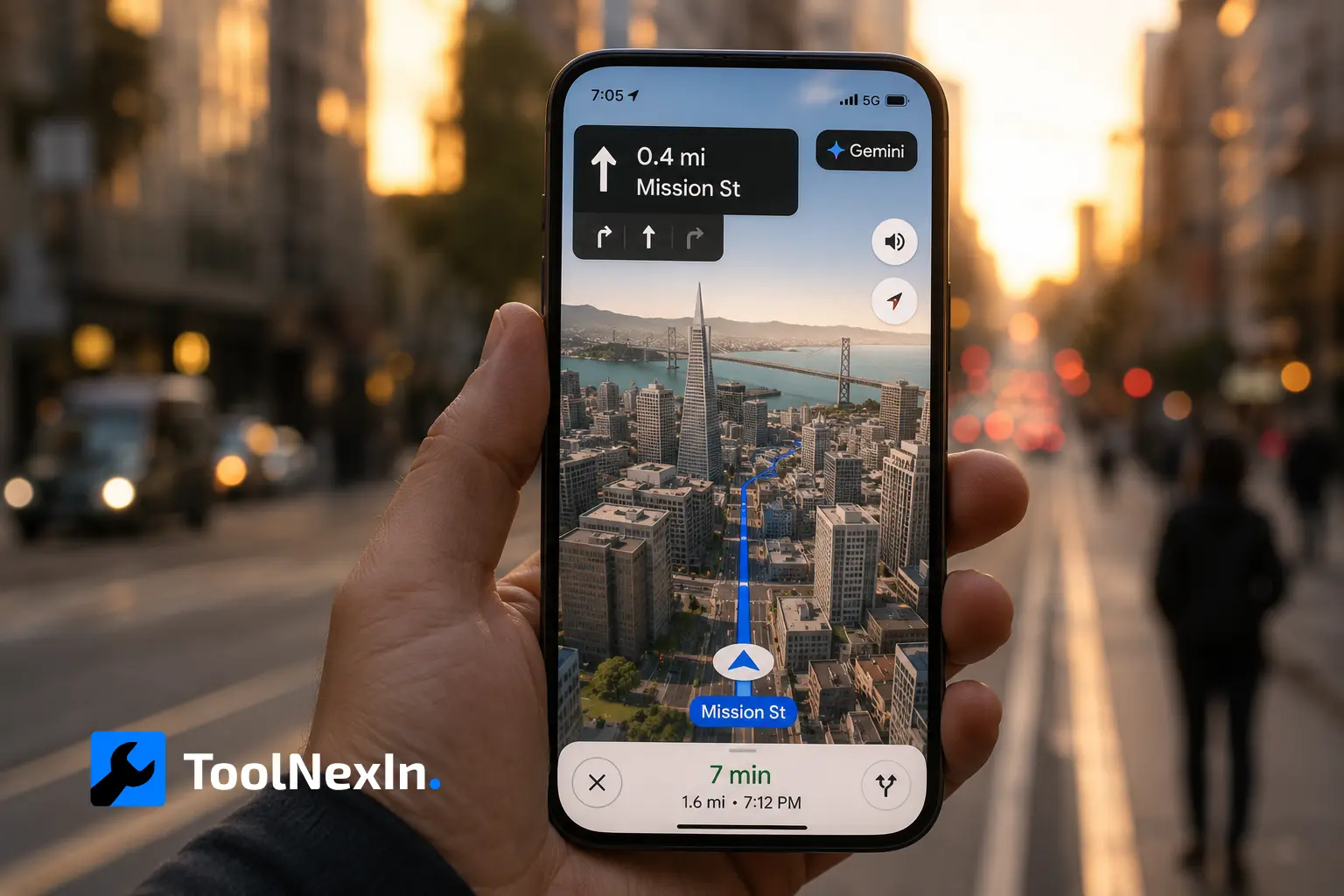
If Ask Maps is the conversational upgrade, Immersive Navigation is the visual one. Google has called this its biggest transformation of the navigation experience in over a decade, and that claim holds up.
The standard 2D top-down navigation view is replaced with a vivid 3D rendering that reflects the actual buildings, overpasses, terrain, and landmarks around you. Gemini models analyze fresh Street View imagery and aerial photos continuously to keep this view accurate and current.
Key upgrades inside Immersive Navigation:
- Lane-level guidance highlights the exact lane you need to be in before a merge or turn
- Critical road details like crosswalks, traffic lights, and stop signs are surfaced when relevant
- Broader route preview shows more of the road ahead so you can anticipate what is coming
- Natural voice guidance replaces robotic distance callouts with landmark-based cues
- Street View previews of key junctions help you recognize a turn before you get there
- Parking suggestions are integrated near your destination to reduce post-arrival stress
The 3D spatial understanding is powered by Gemini processing real-world imagery in real time, not just static map tiles. This is what makes the feature meaningfully different from earlier 3D map views that were essentially cosmetic.
Landmark-Based Navigation: "Turn Right After the Thai Siam Restaurant"
One of the most practically useful Gemini features was introduced in November 2025, and it solves a problem every driver has experienced. Distance-based directions like "turn right in 500 feet" are genuinely hard to calibrate at speed.
Gemini addresses this by cross-referencing 250 million places in the Maps database with Street View images to identify the most visible and recognizable landmarks near key turns. Instead of a distance callout, you hear "turn right after the Thai Siam Restaurant" and see that restaurant highlighted on your map as you approach.
This is not just a cosmetic touch. Landmark-based navigation meaningfully reduces the cognitive load of following directions, particularly in dense urban areas or unfamiliar cities.
Hands-Free Conversational Driving Experience
The full Gemini navigation experience in Maps is built around hands-free interaction. While driving, you can activate Gemini with "Hey Google" and carry out a full range of tasks without touching your phone.
What you can do hands-free:
- Find places along your route
- Check EV charger availability
- Share your ETA with contacts
- Ask questions about landmarks or businesses you are passing
- Report traffic incidents with a simple phrase like "I see an accident" or "Looks like there is flooding ahead"
- Get answers about topics completely unrelated to navigation, like sports results or news
The traffic reporting capability is particularly well-designed. Community-driven incident reports have always been a strength of Google Maps. Gemini makes contributing to that system as simple as saying a sentence while your hands stay on the wheel.
Gemini in navigation is rolling out on Android and iOS wherever Gemini is available. Android Auto support is on the way.
Lens with Gemini: Point Your Camera and Ask
The integration of Google Lens with Gemini inside Maps brings a genuinely novel mode of exploration. You can point your phone camera at a building, landmark, storefront, or any place of interest, and Gemini will identify it and answer follow-up questions in natural language.
Practical use cases:
- Point at a restaurant facade: "What is this place and why is it popular?"
- Point at a monument: "What is the history of this building?"
- Point at a shop: "What are the opening hours, and do they have a website?"
This works by combining visual recognition with Gemini's reasoning and Maps' place database. It turns the physical world around you into a browsable, searchable layer, without needing to know the name of what you are looking at.
Rich Visual Results in the Gemini App
Beyond the Maps app itself, the Gemini standalone app has also been updated to deliver richer, more visual results when you ask location-based questions. Previously, asking Gemini about places near you returned a mostly text-based response with a map view appended at the end.
Now, the response leads with a map showing emoji-themed pins that distinguish different categories of places. Each result is accompanied by a card featuring a photo, star rating, summary of reviews, opening hours, and quick action links for navigation or booking. It is a substantially more useful format for decision-making.
How to Use Google Maps Gemini Features: Step-by-Step
Getting Started with Ask Maps
- Update Google Maps to the latest version on your Android or iOS device
- Open the app and look for the "Ask Maps" button near the search bar
- Tap it to open the conversational interface
- Type or speak your question in natural language, including as much context as you want
- Review the custom map response with pins, ETAs, and recommendation cards
- Tap any result to save, share, book, or start navigation
Tips for better results:
- Include time-specific context ("tonight," "this Sunday afternoon," "before 8 PM")
- Mention preferences like group size, dietary needs, or vibe ("quiet," "family-friendly," "outdoor seating")
- Follow up with clarifying questions just like you would in a conversation
Activating Immersive Navigation
- Start a route as usual in Google Maps
- Once navigation begins, look for the 3D view toggle in the top-right corner of the navigation screen
- Tap to switch from standard 2D view to Immersive Navigation
- Adjust zoom and orientation preferences via the map settings menu
Using Hands-Free Gemini During Driving
- Begin navigation to your destination
- Say "Hey Google" to activate the Gemini assistant
- Ask your question or give a command naturally
- Gemini responds through your device speaker while the map continues in the background
Using Lens with Gemini for Place Discovery
- Open Google Maps
- Tap the Lens icon (camera icon in the search area)
- Point your camera at any building, landmark, or place
- Gemini identifies the location and displays information
- Ask follow-up questions in the text field below the camera view
Google Maps Gemini vs. Traditional Google Maps: A Direct Comparison
| Feature | Traditional Google Maps | Google Maps with Gemini |
|---|---|---|
| Search type | Keyword-based | Natural language, conversational |
| Query complexity | Simple categories only | Multi-condition, context-aware |
| Navigation visuals | Standard 2D top-down | Immersive 3D with real-world rendering |
| Direction cues | Distance-based ("500 feet") | Landmark-based ("after the restaurant") |
| Hands-free capability | Basic voice commands | Full conversational AI, multi-turn |
| In-drive tasks | Navigate only | Find places, report incidents, check news |
| Place discovery | Browse results, read reviews | AI-synthesized recommendations |
| Camera integration | Street View browsing | Live Lens with Gemini Q&A |
What Developers Can Build: Gemini API Grounding with Google Maps
For developers, the Google Maps Gemini integration is not just a consumer feature. Google has opened up "Grounding with Google Maps" through the Gemini API, allowing external applications to tap into Maps data alongside Gemini's reasoning capabilities.
Here is how the developer-facing integration works:
- A user query with geographical context is sent to the Gemini API
- The model detects the geographical intent and invokes the Google Maps grounding tool
- The tool queries Google Maps for relevant places, reviews, photos, addresses, and opening hours
- Maps data is used to ground Gemini's response in accurate, fresh information
- The API optionally returns a google_maps_widget_context_token that developers can use to render an interactive Maps widget inside their own application
This opens up compelling use cases: travel apps that generate full itineraries with real distances and local details, delivery dashboards that factor in live traffic, or local business tools that blend conversational recommendations with navigation.
Gemini 3 models support combining Grounding with Google Maps alongside custom function calling, giving developers significant flexibility in how they structure location-aware AI experiences.
Access is available through Google AI Studio or Google Cloud Vertex AI.
Expert Insights: What Makes This Integration Stand Out
A few things about the Google Maps Gemini integration are genuinely worth paying attention to from a product and technology standpoint.
The query complexity jump is real. Traditional Maps search was essentially a database lookup. You gave it a category, it filtered by location and rating. Ask Maps performs something fundamentally different: it synthesizes intent, context, constraints, and real-world data simultaneously. The gap between those two operations is substantial.
Landmark navigation solves a real ergonomics problem. Spatial research consistently shows that humans navigate more naturally using landmarks than abstract distances. The shift from "turn right in 500 feet" to "turn right after the gas station" aligns the app with how people actually think when they are moving through a physical environment.
The Gemini app's visual Maps results matter for discovery. The update to the Gemini standalone app is easy to overlook, but it signals something important: Google is converging the search, assistant, and maps experiences into a single AI-first interface. The rich result cards with photos, ratings, and action buttons in Gemini are a glimpse of what local discovery looks like when it is redesigned from scratch.
Data privacy deserves attention. Interacting with Gemini in Maps involves sharing location data and query history with Google. Users should review their Google account data settings and location history controls to manage what is retained.
Common Mistakes to Avoid
Searching in keywords out of habit. The most common mistake early Ask Maps users make is defaulting to their old search behavior. Typing "restaurant vegetarian" gets you the old experience. Describing your situation in a sentence gets you the Gemini experience.
Forgetting to update the app. Both Ask Maps and Immersive Navigation require the latest version of Google Maps. If the Ask Maps button is not appearing, a missed app update is almost always the reason.
Trusting every recommendation without checking. Gemini's suggestions are genuinely impressive, but they are not infallible. The system can occasionally surface places that do not perfectly match a highly specific query, particularly in less-mapped areas or for niche requirements. Scan the result cards before committing to a destination.
Using Gemini for basic commands. If you need to "navigate to Heathrow Airport," just type it. Gemini in Maps is built for complexity. Using it for simple destination lookups adds no value and slightly slows down the experience compared to standard search.
Overlooking privacy settings. The conversational and location data generated through Ask Maps and hands-free Gemini interactions is associated with your Google account. Periodic reviews of your Maps Timeline and activity controls are worth adding to your digital hygiene routine.
FAQ: Google Maps Gemini Integration
What is Gemini in Google Maps? Gemini is Google's generative AI model, now embedded directly into Google Maps. It powers conversational search through Ask Maps, real-time landmark-based navigation, hands-free driving assistance, and visual place discovery through Lens. It is designed for complex, context-aware queries that a standard search bar could not handle.
Is Gemini in Google Maps free to use? Yes. The core Gemini features in Google Maps are available at no charge. Users with a paid Gemini subscription may gain access to more advanced capabilities as Google expands the integration over time.
Where is Google Maps Gemini integration available? As of March 2026, Ask Maps and Immersive Navigation are rolling out in the United States and India on Android and iOS. The hands-free Gemini navigation experience from November 2025 is available wherever Gemini is supported. A desktop version of Ask Maps is confirmed for future release. Regional availability for additional countries has not been announced at the time of writing.
Does Gemini in Maps replace Google Assistant? No. Google Assistant handles quick, simple commands such as setting reminders or starting navigation to a saved location. Gemini in Maps is designed for more complex, conversational interactions involving discovery, planning, and contextual awareness. Both coexist within the Maps experience.
Does Gemini in Google Maps work offline? No. Gemini requires an active internet connection to process queries and retrieve location data. Standard Google Maps offline functionality (pre-downloaded maps) continues to work as before, but Gemini-powered features are not available without connectivity.
Can developers access Google Maps Gemini capabilities for their own apps? Yes. Google's Gemini API offers "Grounding with Google Maps," which allows developers to incorporate location-aware AI functionality into external applications. Access is available through Google AI Studio and Google Cloud Vertex AI, with support for combining Maps grounding with custom function calling in Gemini 3 models.
How does Ask Maps differ from doing a Google Search for the same question? Google Search provides web-based answers from across the internet. Ask Maps is specifically grounded in Google's place database, real-time busyness data, community reviews, and your precise current location. It generates a custom map with relevant pins alongside its conversational response, designed for navigation and local discovery rather than general information retrieval.
Conclusion: Navigation Has Changed. Get Familiar With the New Rules.
The Google Maps Gemini integration is not just a software update. It is a rethinking of what a navigation app is supposed to do. The shift from keyword input to conversational exploration, from distance-based cues to landmark-guided turns, and from passive result lists to proactive, context-aware recommendations represents a genuine step change in usability.
Whether you are a daily commuter who wants smarter traffic alerts, a traveler who wants nuanced local recommendations, or a developer building location-aware applications, the Gemini features in Google Maps deliver practical value that was simply not possible a year ago.
The best way to understand it is to use it. Open your updated Maps app, tap Ask Maps, and describe what you are actually looking for in plain English. The results will likely change how you use the app from that point forward.
For developers looking to build on top of this infrastructure, the Grounding with Google Maps API is well worth exploring. The ability to combine Gemini's reasoning with real-time, accurate place data opens up application categories that barely existed before.
If you found this breakdown useful, explore more of our coverage on AI tools and developer resources at ToolNexIn, including our guides on the Google Gemini API, AI-powered productivity tools, and location technology for developers.
Related Tools
If you found this guide useful, here are a few free tools from ToolNexIn that pair well with what you just read.
UTM Builder — If you are sharing Google Maps links as part of a marketing campaign or content strategy, use the UTM Builder to tag your URLs properly and track where your traffic is coming from.
QR Code Generator — Turn any Google Maps location link into a scannable QR code. Useful for business cards, storefronts, printed materials, or anywhere you want to make a physical-to-digital connection.
URL Shortener — Google Maps share links can get long and messy. Shorten them before dropping them into a message, email, or social post.
Link Preview Extractor — Before you share a Maps link or your blog post on social media, use this tool to see exactly how the preview will look across platforms.
IP Lookup — Curious about what location data your IP address gives away while using Maps or browsing the web? This tool shows you exactly what is visible.
Readability Score Checker — Writing your own content about AI or navigation tools? Run it through the Readability Score Checker before publishing to make sure it lands well with your audience.