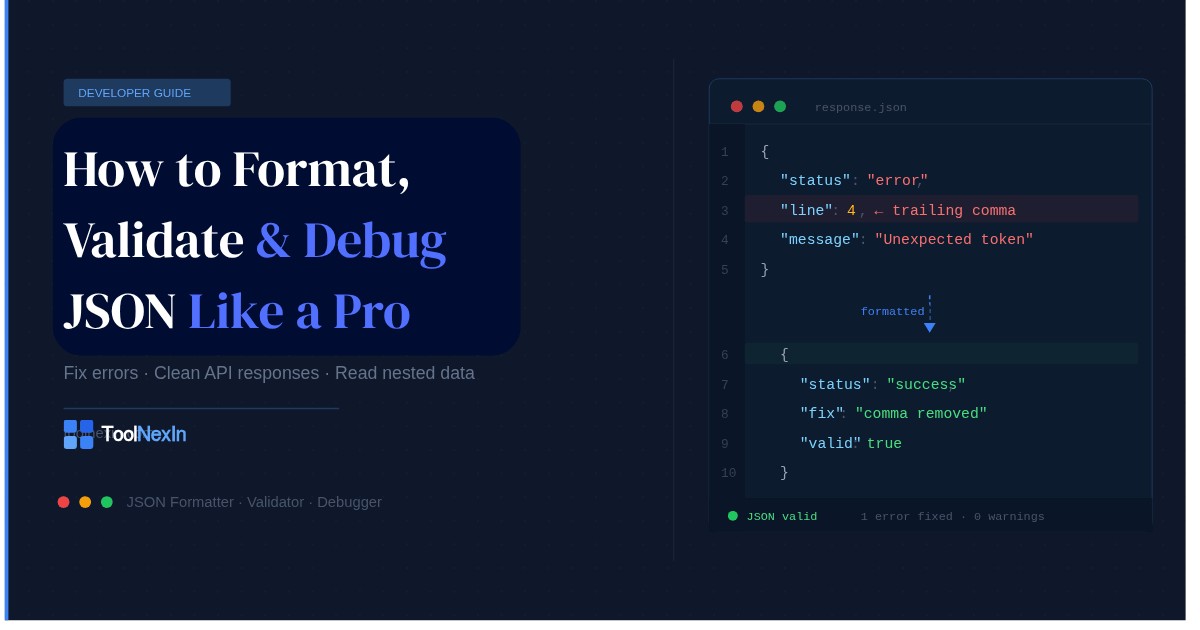
Introduction: JSON Is Everywhere — But Nobody Teaches You How to Read It
If you've ever built an API, worked with a config file, or tried to debug a response from a third-party service, you've stared at a wall of JSON that looked like this:
{"name":"Rahul","age":29,"city":"Delhi","skills":["Python","SQL","React"],"active":true}You know there's data in there. But reading it? Finding that one missing comma causing the whole thing to break? Nearly impossible without the right tool.
That's exactly what a JSON formatter solves — and this guide goes far deeper than "just paste your JSON and click format." By the end, you'll understand why JSON breaks, what the formatter is actually doing under the hood, and when you should use JSON vs other formats entirely.
What Is JSON, Really? (Beyond the Textbook Definition)
JSON stands for JavaScript Object Notation. It was introduced by Douglas Crockford in the early 2000s as a lightweight alternative to XML for transferring data between a server and a browser.
But here's what most articles skip: JSON isn't just a format — it's a strict data serialization contract. Every character matters. A single misplaced comma, an unquoted key, or a trailing bracket can make an entire JSON document invalid.
JSON supports exactly six data types:
| Type | Example |
|---|---|
| String | "hello" |
| Number | 42 or 3.14 |
| Boolean | true or false |
| Null | null |
| Array | ["a", "b", "c"] |
| Object | {"key": "value"} |
That's it. No dates. No functions. No comments. No undefined. This strictness is intentional — it makes JSON language-agnostic and universally parseable. But it also means there's zero tolerance for syntax errors.
What Does a JSON Formatter Actually Do?
Most people think a JSON formatter just "adds spaces." In reality, it performs several distinct operations:
1. Lexical Tokenization
The formatter reads your raw JSON string character by character and breaks it into tokens — keys, values, colons, brackets, commas. This is the same process a JSON parser uses in a programming language.
2. Syntax Validation
Before formatting anything, the tool checks whether your JSON is structurally valid. If there's a missing closing bracket or a trailing comma, it catches it here and throws an error — ideally with the exact line number.
3. Tree Construction (AST)
Valid JSON is then turned into an Abstract Syntax Tree (AST) — a hierarchical representation of your data. This is what powers the tree view you see in advanced formatters.
4. Pretty-Printing
The AST is then serialized back into a human-readable string with consistent indentation (2 spaces, 4 spaces, or tabs depending on your preference). Keys are preserved in order. Nesting is reflected through indentation levels.
5. Minification (Reverse)
A JSON minifier does the exact opposite — it removes all whitespace to reduce file size for production use, API responses, or storage. Same data, fewer bytes.
Try the JSON Formatter on ToolNexIn — it handles all five steps above instantly, right in your browser, with no signup.
The Most Common Reasons JSON Breaks (And How to Spot Each One)
This section is what most blog posts never cover. Here are the real culprits behind invalid JSON, with examples:
Trailing Comma
{
  "name": "Rahul",
  "city": "Delhi",   ← this comma has no following key
}
JSON does not allow trailing commas after the last key-value pair or array element. JavaScript does (in ES5+), which is why developers constantly get tripped up.
Fix: Remove the last comma.
Single Quotes Instead of Double Quotes
{
  'name': 'Rahul'    ← invalid
}
JSON only recognises double quotes. Single quotes are a JavaScript convention that JSON explicitly rejects.
Fix: Replace all ' with ".
Unquoted Keys
{
  name: "Rahul"    ← invalid
}
In JavaScript, you can write object keys without quotes. In JSON, every key must be a double-quoted string.
Fix: Add double quotes around all keys.
Comments
{
  "name": "Rahul"  // this is a comment ← invalid
}
JSON has no comment syntax. Not //, not /* */, nothing. If you need comments in config files, look at JSONC (JSON with Comments) — used by VS Code and TypeScript configs — but understand that standard JSON parsers will reject it.
Undefined or NaN Values
{
  "score": NaN,
  "result": undefined    ← both invalid
}
These are JavaScript-specific values. JSON only supports null as a "no value" placeholder.
Mismatched Brackets
{
  "items": [1, 2, 3
}
An array opened with [ must close with ]. This is the hardest error to spot in large JSON blobs — which is exactly why a formatter that shows line-by-line errors is invaluable.
JSON Indentation: Does It Actually Matter?
For machines — no. A single-line minified JSON and a beautifully indented JSON contain identical data.
For humans — absolutely. The choice of indentation level affects readability significantly:
2-space indent — compact, common in frontend codebases (Prettier default)
4-space indent — more readable for deeply nested structures, common in Python
Tab indent — personal preference, slightly better for keyboard navigation
There's no universal standard, but be consistent within a project. Mixing indentation levels within the same codebase creates unnecessary noise in Git diffs.
JSON vs XML vs CSV: When to Use Which
This is a question developers constantly debate. Here's an honest breakdown:
| Feature | JSON | XML | CSV |
|---|---|---|---|
| Human readability | Good | Verbose | Simple |
| Nested data support | Native | Native | Poor |
| Comments support | No | Yes | No |
| File size | Small | Large | Smallest |
| Schema/validation | JSON Schema | XSD/DTD | None native |
| API use | Industry standard | Legacy | Rare |
| Spreadsheet use | Poor | Poor | Native |
Use JSON when: You're building APIs, working with modern web apps, or storing config data.
Use XML when: You're working with enterprise systems, SOAP APIs, or need document-centric data with attributes.
Use CSV when: You're exporting data for Excel, Google Sheets, or any tabular reporting use case.
Need to convert between formats? ToolNexIn has you covered:
How to Read Nested JSON Without Losing Your Mind
Deeply nested JSON is where most people struggle. Here's a real-world example — a typical API response from a user profile endpoint:
{
  "user": {
    "id": 1042,
    "name": "Priya Sharma",
    "contact": {
      "email": "priya@example.com",
      "phone": "+91-9876543210"
    },
    "orders": [
      {
        "order_id": "ORD-001",
        "items": ["laptop", "mouse"],
        "total": 85000
      },
      {
        "order_id": "ORD-002",
        "items": ["keyboard"],
        "total": 3500
      }
    ]
  }
}
How to mentally parse this:
- Start at the outermost
{}— this is the root object. - It has one key:
user, whose value is another object. userhas four keys:id,name,contact, andorders.contactis an object.ordersis an array of objects.- Each object in
ordershasorder_id,items(an array of strings), andtotal.
Tip: Use a tree view to navigate nested JSON. The ToolNexIn JSON Formatter renders nested JSON as a collapsible tree, making it trivial to explore even 10-level-deep structures.
JSON Schema: The Part Nobody Talks About
Most developers know how to write JSON. Very few know about JSON Schema — and it's a significant gap.
JSON Schema is a vocabulary that lets you describe the structure, types, and constraints of your JSON data. Think of it as a data contract.
Example: A schema for a user object:
{
  "$schema": "https://json-schema.org/draft/2020-12/schema",
  "type": "object",
  "properties": {
    "name": { "type": "string" },
    "age": { "type": "integer", "minimum": 0 },
    "email": { "type": "string", "format": "email" }
  },
  "required": ["name", "email"]
}
With this schema, you can:
- Automatically validate incoming API data
- Generate documentation
- Auto-generate form fields in frontend apps
- Catch mismatched data types before they cause runtime errors
If you're building any kind of API or data pipeline, learning JSON Schema pays dividends immediately.
JSON in Real-World Developer Workflows
API Development
REST APIs almost universally return JSON. Tools like Postman, Insomnia, and Thunder Client all have built-in JSON formatters — but when you're testing quickly or working outside those tools, a browser-based formatter is faster.
Config Files
package.json, tsconfig.json, .eslintrc, manifest.json — your entire Node.js/frontend stack runs on JSON config files. A single syntax error in package.json can stop your entire build.
Logging & Monitoring
Structured logging in JSON format is now the industry standard. Tools like Elasticsearch, Datadog, and Splunk ingest JSON logs natively. Formatting these logs makes debugging infinitely easier.
Data Science & Analytics
Python's json module, pandas JSON support, and tools like jq (command-line JSON processor) are standard in data workflows. Understanding JSON structure is a prerequisite for working with most modern data APIs.
JSON Minification: When and Why
Once you're done building and testing, you often want to minify your JSON — strip all whitespace — for production.
Why it matters:
- A 10KB formatted JSON becomes ~7KB minified (rough estimate depending on nesting)
- Every byte saved reduces API response time
- Minified JSON is harder to accidentally hand-edit (which is actually a feature in production)
A formatted JSON response:
{
  "status": "success",
  "code": 200,
  "data": {
    "user": "Rahul"
  }
}
Minified:
{"status":"success","code":200,"data":{"user":"Rahul"}}Same data. ~40% fewer characters.
The ToolNexIn JSON Formatter supports both beautify and minify in one place — no need to switch tools.
Base64 and JSON: A Common Pairing You Should Understand
Some APIs encode JSON data as Base64 before transmitting it — especially when embedding JSON in URLs, headers, or other JSON fields. This is common in JWT tokens, webhook payloads, and certain authentication systems.
If you receive a Base64-encoded string and suspect it contains JSON, you first need to decode it, then format it.
ToolNexIn has both tools side by side:
- 👉 Base64 Decoder — decode the string first
- 👉 JSON Formatter — then format the output
JSON and URL Encoding: Another Common Gotcha
When JSON is passed as a URL query parameter, it needs to be URL-encoded — otherwise characters like {, }, ", and : break the URL structure.
Example:
- Raw:
{"user":"rahul","id":1} - URL-encoded:
%7B%22user%22%3A%22rahul%22%2C%22id%22%3A1%7D
If you're debugging an API call where JSON is passed in a query string, always decode the URL first before trying to format the JSON.
👉 Use the URL Encoder/Decoder on ToolNexIn to decode it, then run it through the JSON Formatter.
MD5 / SHA Hashing JSON Payloads: Why Developers Do This
A less-discussed but important pattern: hashing JSON payloads for integrity verification.
When two systems exchange JSON data, the sender can attach an MD5 or SHA256 hash of the payload. The receiver recalculates the hash and checks if it matches — confirming the data wasn't tampered with in transit.
This is commonly used in:
- Webhook signature verification (GitHub, Stripe, Razorpay all do this)
- API request signing
- Caching layers that invalidate based on content hash
If you're working on webhook integrations, understanding this pattern is essential. ToolNexIn provides:
Frequently Asked Questions About JSON Formatters
Q: Is my JSON data safe when I use an online formatter?
A: With ToolNexIn, yes — all processing happens directly in your browser. Your JSON never leaves your device. No data is sent to any server.
Q: What's the difference between a JSON formatter and a JSON validator?
A: A formatter beautifies your JSON for readability. A validator checks whether the JSON is syntactically correct. Most good tools — including ToolNexIn's — do both simultaneously.
Q: Can a JSON formatter fix my broken JSON?
A: It can identify where the error is. Some advanced tools attempt auto-correction for common errors (trailing commas, single quotes), but auto-correction on invalid JSON can introduce new errors. It's safer to understand and fix the error manually using the line number the validator gives you.
Q: What's the difference between JSON and JSONP?
A: JSONP (JSON with Padding) was a workaround for cross-origin data fetching before CORS existed. It wraps JSON in a JavaScript function call. It's largely obsolete now — modern APIs use CORS headers instead.
Q: Why does my JSON look fine but still fails validation?
A: The most common culprit is an invisible character — a non-breaking space (U+00A0), a BOM (byte order mark), or a zero-width space — that snuck in when you copied from Word, Google Docs, or a PDF. These characters are invisible but break JSON parsers. A good formatter will catch them.
Conclusion: JSON Formatting Is a Skill, Not Just a Step
Most developers treat JSON formatting as a mechanical step — paste, format, copy. But understanding why JSON breaks, what the formatter is doing, and how JSON relates to the broader ecosystem of data formats makes you significantly faster at debugging, API integration, and building reliable systems.
The next time a colleague sends you a raw JSON blob or an API returns garbled data, you won't just paste it and hope — you'll know exactly what to look for.
→ Format and Validate JSON Instantly with ToolNexIn
No signup. No tracking. No data sent to any server. Just results.
Related Tools on ToolNexIn
- JSON to CSV Converter
- CSV to JSON Converter
- JSON to XML Converter
- Base64 Encoder / Decoder
- URL Encoder / Decoder
- MD5 Hash Generator
- SHA256 Hash Generator
- UTM Builder
Written by Rahul Soni, Founder & Developer at ToolNexIn